fbpx

KiteSuite for Small Businesses: Solutions and Strategies for Growth

Running a small business in 2026 is more competitive than ever. Customers expect faster responses, seamless communication, personalized experiences, and reliable delivery all while businesses try to manage limited time and resources.


That’s where KiteSuite helps small businesses simplify operations, automate repetitive work, and improve team collaboration from one centralized workspace.


Whether you’re managing projects, tracking orders, organizing marketing campaigns, or handling client communication, KiteSuite gives small businesses the tools needed to grow without the chaos.


Why Small Businesses Need Better Workflow Systems in 2026


Many small businesses still rely on spreadsheets, disconnected apps, endless emails, and manual follow-ups. As operations grow, these systems become difficult to manage.


Common challenges include:


  • Missed deadlines
  • Disorganized tasks
  • Poor team communication
  • Manual data tracking
  • Difficulty managing customers and orders
  • Lack of visibility into projects and budgets


Modern businesses need an all-in-one workspace that combines project management, collaboration, automation, forms, and tracking in one place.


That’s exactly what KiteSuite offers.

How KiteSuite Helps Small Businesses Grow

1. Centralized Workspace for Better Organization


KiteSuite allows businesses to create dedicated Workspaces, Projects, Folders, and Task Boards to organize operations efficiently.


Instead of switching between multiple tools, teams can manage:


  • Marketing campaigns
  • Sales pipelines
  • Client projects
  • Financial tracking
  • Inventory management
  • Internal communication

from one dashboard.


This centralized structure improves productivity and reduces operational confusion.


2. Smarter Project Management with Kanban & Scrum Boards


Small businesses need flexibility. KiteSuite supports both Kanban and Scrum workflows, helping teams manage tasks visually and efficiently.


With customizable boards, businesses can:


  • Track project progress in real time
  • Assign responsibilities clearly
  • Set deadlines and priorities
  • Improve team accountability
  • Reduce delays and bottlenecks


Whether you run a startup, marketing agency, eCommerce store, or service business, visual project management helps teams stay aligned.


3. Custom Fields for Better Data Management


Every business tracks different information. KiteSuite’s Custom Fields allow businesses to tailor workflows based on their needs.


Examples include:


  • Order status
  • Customer information
  • Product sizes and pricing
  • Payment details
  • Lead sources
  • Marketing campaign performance


This flexibility helps businesses build systems that match their exact operations instead of forcing teams into rigid workflows.


4. Budget and Expense Tracking


Financial visibility is critical for small businesses.


KiteSuite helps teams create budget tracking systems using Lists, statuses, and formula fields to monitor:


  • Expenses
  • Revenue
  • Profit margins
  • Operational costs
  • Vendor payments


This makes financial management easier without requiring multiple spreadsheets or external tools.


5. Order & Client Tracking System


Managing orders manually can quickly become overwhelming.


With KiteSuite, businesses can build a complete order tracking workflow that includes:


  • Customer details
  • Order progress
  • Fulfillment status
  • Delivery tracking
  • Payment confirmation


This improves customer experience while reducing operational errors.


6. Powerful Automation to Save Time


Automation is no longer optional in 2026.


KiteSuite automates repetitive business processes like:


  • Task status updates
  • Notifications and reminders
  • Workflow triggers
  • Team assignments
  • Approval processes
  • Inventory updates


Automation reduces manual work, saves time, and allows teams to focus on growth-oriented activities.


7. Team Collaboration Made Simple


As businesses grow, communication becomes more complex.


KiteSuite improves collaboration with features like:


  • Shared task management
  • Internal communication tools
  • Assignee tracking
  • Team activity updates
  • Shared workspaces


This helps teams stay connected and productive, even when working remotely.


8. Advanced Forms for Lead Generation & Sales


One of KiteSuite’s most powerful features for small businesses is its advanced form builder.


Businesses can use forms to:


  • Collect customer inquiries
  • Capture leads
  • Accept payments
  • Run event registrations
  • Gather customer feedback
  • Sell products online


The platform also supports third-party integrations and payment gateways, making it an affordable alternative for businesses that don’t want to invest heavily in website development early on.

Real Benefits of Using KiteSuite for Small Businesses

Increased Productivity

By centralizing operations and automating repetitive work, teams spend less time managing tools and more time growing the business.


Better Decision-Making

Real-time visibility into projects, finances, and workflows helps business owners make smarter decisions faster.


Improved Customer Experience

Faster communication, organized order management, and streamlined workflows create better customer satisfaction.


Scalability

KiteSuite grows with your business. Whether you have 2 employees or 200, the platform adapts to your workflow needs.


Reduced Operational Costs

Using one integrated platform minimizes the need for multiple software subscriptions.

Best Small Businesses That Can Use KiteSuite


Startups – Organize projects, manage teams, and scale operations efficiently from day one.


Marketing Agencies – Track campaigns, manage clients, and collaborate with creative teams easily.


eCommerce Brands – Handle orders, inventory, customer communication, and workflow automation in one place.


Freelancers – Manage tasks, deadlines, invoices, and client projects more effectively.


IT Companies – Streamline software development, bug tracking, and team collaboration with agile workflows.


Consulting Firms – Organize client projects, meetings, documents, and reporting processes efficiently.


Manufacturing Businesses – Track production workflows, inventory updates, and operational processes in real time.


Creative Teams – Collaborate on designs, content, approvals, and campaign execution smoothly.


Service-Based Businesses – Manage bookings, customer requests, team assignments, and service delivery easily.


Event Management Companies – Plan events, track vendors, manage schedules, and coordinate teams seamlessly.


Why Small Businesses Choose KiteSuite in 2026


Modern businesses need more than basic task management software.

They need:


  • Automation – Reduce manual work by automating repetitive tasks and workflow processes.


  • Collaboration – Keep teams connected with shared workspaces, task updates, and communication tools.


  • Custom Workflows – Create flexible workflows tailored to your business operations and goals.


  • Project Tracking – Monitor tasks, deadlines, and project progress in real time.


  • Client Management – Organize customer information, orders, and communication from one platform.


  • Business Visibility – Gain clear insights into team performance, operations, and overall business growth.


KiteSuite combines all these features into one scalable platform designed to help businesses operate more efficiently and grow faster.


Final Thoughts


Building a successful small business requires smart systems, clear organization, and consistent execution. While passion and hard work are important, having the right tools can significantly accelerate growth.


KiteSuite helps small businesses simplify workflows, automate operations, improve collaboration, and scale efficiently without unnecessary complexity.


In 2026, businesses that embrace automation, centralized project management, and smarter workflows will have a major competitive advantage.


If you want to save time, improve productivity, and scale your operations faster, KiteSuite can become the foundation of your business growth strategy.

Top 10 Time Tracking Software 2026

If you’ve ever lost a billable hour, struggled to understand where your team’s time goes, or needed accurate data to run a project on budget, you already understand why the best time tracking software 2026 has to offer matters more than ever.


Today’s workforce is more distributed, flexible, and project-driven than at any point in history. Remote teams span multiple time zones. Hybrid schedules blend office and homework. Freelancers juggle multiple clients. And every business, from a solo consultant to a 500-person agency, needs reliable, audit-ready records of how hours are being spent.


Time tracking software automates that process. Instead of relying on memory, spreadsheets, or gut estimates, the right tool captures work in real time, ties it to projects and clients, feeds payroll and invoicing, and surfaces the data you need to make better decisions.

What Is Time Tracking Software?

Time tracking software is a digital tool that records how long individuals or teams spend on tasks, projects, or clients. It replaces paper timesheets and manual spreadsheets with real-time capture, automatic categorisation, and structured reporting. The best solutions combine employee time tracking software capabilities attendance, overtime, approvals with deep project time tracking tools features such as budget burn rates, task-level breakdowns, and client billing.

Three Main Types of Time Tracking

Understanding the different approaches helps you pick the right fit:

  • Manual (timer-based): The user starts and stops a timer as they work. Simple and accurate when used consistently. Used by Toggl Track, Harvest, and Clockify.


  • Automatic (activity-based): The software detects which apps, URLs, or documents are active and logs time against them without any user action. Used by TimeCamp and Hubstaff. Ideal for detail-oriented reporting and employee monitoring.


  • Calendar / schedule-based: Time is planned or estimated in advance by blocking calendar events, then compared to actuals. Some project management platforms use this hybrid approach.


Core Benefits

  • Productivity visibility: Understand where hours actually go versus where you think they go.


  • Accurate billing: Generate invoices based on real time data, not estimates or memory.


  • Project budgeting: Alert managers when a project is at risk of going over budget before it happens.


  • Payroll accuracy: Feed verified hours directly into payroll systems to eliminate manual re-entry errors.


  • Compliance and audit trails: Maintain records required for labour law compliance, government contracts, or client audits.


Key Features to Look For in 2026

The market has matured significantly. Here are the capabilities that separate genuinely useful tools from basic stopwatch apps:


Real-Time Timers

A fundamental one-click or keyboard-shortcut timer is non-negotiable. Look for tools that remember recent entries so users can restart a previous task instantly, and that support manual entry for after-the-fact logging.


Automatic Tracking

Automated time tracking software significantly reduces the burden on individual contributors. App-level detection, URL tracking, and keystroke/mouse activity signals mean every minute is captured even when people forget to hit start. This is particularly valuable for distributed or asynchronous teams.


Mobile App Support

Mobile time tracking apps matter for field workers, commuters, and anyone who switches between environments. Key requirements: offline mode (sync when reconnected), GPS location tagging, and a UI optimised for one-handed use.


Reporting and Analytics

Raw time data is only valuable if you can act on it. Strong reporting should include breakdowns by team member, project, client, and date range; exportable formats (CSV, PDF, Excel); and visual dashboards for quick health checks. Advanced tools offer budget-vs-actual overlays and capacity-planning charts.


Project and Task Integration

Time entries are far more useful when tied to specific tasks. Look for native integrations with project management tools (Asana, Jira, Trello, ClickUp, Monday.com) or a built-in project hierarchy. This connection enables granular time tracker comparison across projects.


Invoicing and Billing

For client-facing teams, the ability to mark time as billable and generate invoices directly from the tracker removes a major workflow pain point. Harvest is particularly strong here; others like My Hours and Clockify offer lighter versions of the same capability.


Team Collaboration

Time tracking apps for teams need admin dashboards, role-based permissions, team timesheets, approval workflows, and the ability to compare utilisation across people. Enterprise-grade tools add department hierarchies and custom approval chains.


AI Automation and Smart Suggestions

In 2026, leading tools are incorporating AI to suggest how to categorise time based on calendar events, auto-fill gaps in timesheets, flag anomalies, and predict project overruns. This is a fast-moving area worth checking release notes for any tool you evaluate.

Top Time Tracking Software for 2026


1. KiteSuite | All-in-one project management with built-in time tracking

Best for: Teams and agencies that want project planning, execution, time tracking, and billing in a unified workspace without integrating multiple tools

Key Features:

  • Integrated project management with Kanban boards, Gantt charts, and task dependencies
  • Built-in time tracking tied directly to tasks and projects no separate tool needed
  • Client portal for project visibility and collaboration
  • Invoicing and expense management connected to tracked time
  • Team workload balancing and capacity planning
  • Real-time collaboration with comments, file sharing, and notifications
  • Custom workflows and automation rules
  • Mobile apps for iOS and Android with offline sync

Pricing: Free (limited projects) | Starter $8/user/mo | Professional $15/user/mo | Enterprise custom

Pros:

  • Single platform eliminates integration headaches and reduces tool sprawl
  • Time tracking context is always visible within the task you’re working on
  • More affordable than paying for separate PM and time tracking subscriptions
  • Purpose-built for teams that manage client projects end-to-end
  • Reduces context switching plan, track, and bill in one interface

Cons:

  • Less specialised time monitoring features than standalone trackers like Hubstaff
  • Not ideal if you only need time tracking without project management
  • Newer to market compared to established players like Harvest or Toggl


2. Hubstaff | Best overall for remote & distributed teams

Best for: Remote teams, agencies, companies with field workers needing GPS and productivity monitoring

Key Features:

  • Automated screenshots and activity levels (keyboard/mouse)
  • GPS location tracking for mobile and field staff
  • Payroll processing and payroll integrations (Gusto, PayPal, Wise)
  • Project budgets with over-budget alerts
  • Robust time tracker comparison reporting with custom exports
  • Integrations with 30+ tools including Asana, Jira, Trello, QuickBooks

Pricing: Free (1 user) | Starter $7/user/mo | Grow $9/user/mo | Team $12/user/mo | Enterprise $25+/user/mo

Pros:

  • Most complete feature set for remote workforce management
  • Activity monitoring builds accountability without micromanagement
  • Payroll integration removes a major manual step
  • Excellent mobile app with offline support

Cons:

  • Screenshot monitoring can feel intrusive for some cultures
  • Pricing climbs quickly for larger teams
  • Some advanced features locked behind higher tiers


3. Toggl Track | Simplest timer-based tracker with a beautiful UI

Best for: Freelancers, small agencies, and individuals who value simplicity and speed

Key Features:

  • One-click browser extension and desktop app timer
  • Pomodoro timer mode built in
  • Idle detection and reminders to track
  • Billable rates and basic invoicing
  • 100+ integrations including Asana, Basecamp, and Trello
  • Detailed summary, detailed, and weekly reports

Pricing: Free (up to 5 users) | Starter $10/user/mo | Premium $18/user/mo | Enterprise custom

Pros:

  • Gentlest learning curve of any tool in this list
  • Generous free tier for freelancers and small teams
  • Browser extension makes tracking frictionless
  • Cross-platform (web, desktop, iOS, Android)

Cons:

  • No automated activity tracking on free or Starter plan
  • Invoicing is basic compared to Harvest
  • Not ideal for teams needing scheduling or payroll


4. Clockify | Best free time tracking software with unlimited users

Best for: SMBs, growing agencies, and any team that needs powerful tracking without per-seat costs

Key Features:

  • Unlimited users and unlimited tracking on the free plan
  • Calendar view and timesheet view
  • Project and client management with budget tracking
  • Attendance and leave management
  • Kiosk mode for shared device clock-in
  • GPS tracking and screenshots on paid plans

Pricing: Free (unlimited users) | Basic $4.99/user/mo | Standard $6.99/user/mo | Pro $9.99/user/mo | Enterprise $14.99/user/mo

Pros:

  • Only major free tier with truly unlimited users
  • Surprisingly deep feature set on free plan
  • Active development pace with frequent new features
  • GDPR-compliant and privacy-forward

Cons:

  • UI is functional but less polished than Toggl or Harvest
  • Advanced automation requires paid plans
  • Customer support can be slow on free tier


5. Harvest | Best for time tracking combined with client invoicing

Best for: Agencies, consultants, and any client-facing business that needs time tracking plus billing in one place

Key Features:

  • Native invoice generation from tracked time
  • Expense tracking and receipt capture
  • Project budget and forecast reporting
  • Team capacity and utilisation reports
  • Integrations with QuickBooks, Xero, Stripe, Basecamp, Asana
  • Automated payment reminders

Pricing: Free (1 user, 2 projects) | Pro $12/user/mo (unlimited everything)

Pros:

  • Best-in-class invoicing workflow tied directly to time entries
  • Clean, professional interface
  • Expense tracking removes the need for a separate tool
  • Strong accounting software integrations

Cons:

  • No automatic activity tracking
  • Relatively expensive at scale compared to Clockify
  • Limited built-in project management features


6. My Hours | Best simple, user-friendly tracker for billing and projects

Best for: Freelancers and small teams that want clean project billing without complexity

Key Features:

  • Simple project-based time logging
  • Client and project budget tracking
  • Billable and non-billable hours separation
  • Detailed client-ready reports
  • Tags for granular activity categorisation
  • Approval workflow for team timesheets

Pricing: Free (unlimited users, basic) | Pro $9/user/mo

Pros:

  • Exceptionally intuitive minimal onboarding needed
  • Generous free plan for freelancers
  • Excellent value on Pro plan
  • Clear client reporting without data overload

Cons:

  • Fewer integrations than Toggl or Clockify
  • No GPS, screenshots, or activity monitoring
  • Not suitable for enterprise workforce management


7. TimeClock Plus | Best all-around enterprise time and attendance solution

Best for: Mid-market to enterprise organisations needing workforce management, scheduling, and compliance

Key Features:

  • Biometric and badge-based clock-in options
  • Shift scheduling and absence management
  • Labour law compliance tools (FMLA, ACA)
  • Integration with major HR and payroll platforms
  • Configurable approval workflows
    Detailed labour cost analytics

Pricing: Custom quote based on organisation size

Pros:

  • Purpose-built for complex workforce management
  • Compliance tools reduce legal risk
  • Highly configurable for large organisations
  • Dedicated implementation and support teams

Cons:

  • Significant implementation effort
  • Cost is opaque without a sales conversation
  • Overkill for teams under 50 people


8. TimeCamp | Best automated tracking for agencies needing keyword capture

Best for: Agencies, software teams, and companies that want fully automatic time logging without manual timers

Key Features:

  • AI keyword-based automatic time categorisation
  • Application and URL tracking
    Billable rates, invoicing, and budget alerts
  • GPS tracking on mobile
    Over 100 integrations including Asana, Trello, Slack
  • Attendance and leave tracking

Pricing: Free | Basic $2.99/user/mo | Pro $5.99/user/mo | Premium $10.99/user/mo | Enterprise custom

Pros:

  • Most automated capture of any tool in this list
  • Competitive pricing with a solid free tier
  • Good for teams that consistently forget to track

Cons:

  • Auto-categorisation accuracy requires initial training
  • UI feels dated compared to Toggl or Harvest
  • Privacy concerns for some employees around detailed activity logs


9. Jibble | Best for deskless, field, and shift-based workers

Best for: Retail, construction, hospitality, and any business with non-desk employees and shift-based scheduling

Key Features:

  • Facial recognition clock-in to prevent buddy punching
  • GPS location verification on clock-in
  • Kiosk mode for shared tablets or PCs
  • Shift and leave management
  • Overtime and break tracking
  • Payroll export to popular platforms

Pricing: Free (unlimited users, basic) | Premium $4.99/user/mo | Ultimate $9.99/user/mo | Enterprise custom

Pros:

  • Facial recognition is a genuine differentiator for field teams
  • Unlimited users on free plan
  • Purpose-built for industries most tools ignore

Cons:

  • Biometric features raise privacy considerations in some jurisdictions
  • Less suited to knowledge worker or project-based work
  •   Reporting is narrower than Hubstaff or Clockify

How to Choose the Right Time Tracking Software

With several strong time tracking tools available, choosing the right one depends on understanding your team’s needs, workflows, and long-term goals. Instead of selecting based on popularity alone, businesses should evaluate software based on team structure, work environment, reporting needs, and budget. By assessing these factors carefully, you can narrow your options to one or two tools and test them before making a final decision.


Team Size & Structure

Freelancers and solo users need simple tools with free plans like Toggl Track or My Hours. Small teams can use Clockify or Harvest, while growing agencies benefit from Hubstaff or TimeCamp. Enterprises with complex HR needs should consider advanced solutions like TimeClock Plus.


Remote or Deskless Teams

Remote teams require visibility features such as productivity tracking and GPS monitoring, where Hubstaff performs well. Field or shift-based workers benefit from kiosk and facial recognition features offered by Jibble.


Billing & Invoicing Needs

Businesses that bill hourly should use tools with built-in invoicing like Harvest. If accounting is managed separately, choose software that integrates with platforms like QuickBooks or Xero.


Reporting Requirements

Choose tools based on your goals project profitability, payroll accuracy, or client billing. Advanced reporting is available in Hubstaff and Clockify, while simpler reporting works well in Toggl Track.


Budget Considerations

Free plans from Clockify, Jibble, and TimeCamp are suitable for many teams. Paid tools usually range between $10–$14 per user per month, so calculate total cost based on team size.


Integrations

Ensure compatibility with your existing tools such as Jira, Asana, Slack, QuickBooks, or Xero for smoother workflows.


Mobile & Offline Support

Strong mobile apps are essential for field teams. Hubstaff and Jibble offer powerful mobile features, while Clockify and Toggl Track support offline tracking with auto-sync.

KiteSuite vs. Other PM Tools: Feature, Price & Use-Case Breakdown

Introduction: The PM Tool Explosion (and Confusion)


Project management tools have evolved from simple task trackers into full-scale execution systems. Today, teams don’t just want to manage tasks they want to collaborate, automate workflows, track time, and analyze performance in one place.


According to industry insights, modern PM tools now integrate:

  • Real-time collaboration
  • AI-driven insights
  • Cross-functional workflows
  • Deep integrations with existing tech stacks
  • Yet despite hundreds of tools in the market, most teams still struggle with one core question:


Which project management tool actually fits my team not just in features, but in real-world usage?


This blog breaks down KiteSuite vs leading PM tools like ClickUp, Jira, and Monday.com covering features, pricing, and best use cases.


Understanding KiteSuite’s Position in the Market


KiteSuite positions itself as an all-in-one work management platform combining:


  • Task management
  • Time tracking
  • Team communication
  • Documentation


However, compared to mature tools, it leans more toward simplicity and affordability rather than deep customization or enterprise-scale capabilities.


Core Features Comparison


1. Task & Project Management


KiteSuite includes:

  • Task creation and assignment
  • Kanban boards
  • Basic workflow tracking


But tools like ClickUp and Jira go further.

  • ClickUp offers 15+ views including mind maps and workload views
  • Jira specializes in issue tracking and agile workflows


Verdict:

  • KiteSuite → Good for simple workflows
  • ClickUp → Best for flexibility
    Jira → Best for technical teams


2. Collaboration & Communication


KiteSuite includes built-in chat and collaboration features.


But:

  • ClickUp integrates docs, chat, and whiteboards in one workspace
  • Monday.com focuses on visual collaboration and dashboards
  • “ClickUp unites tasks, Docs, Chat… in one workspace.”


Verdict:


  • KiteSuite → Basic collaboration
  • ClickUp → Fully integrated workspace
  • Monday → Visual collaboration leader


3. Reporting & Analytics


KiteSuite:

  • Basic dashboards
  • Time tracking reports


Competitors:

  • ClickUp → advanced reporting + dashboards
    Monday → customizable dashboards with widgets
    Jira → advanced sprint and burndown analytics


Verdict:

  • KiteSuite works for basic reporting, but lacks depth for data-heavy teams.


4. Integrations & Ecosystem


Jira → 3000+ integrations
ClickUp → 1000+ integrations
KiteSuite → limited integrations


Verdict:

  • KiteSuite is not ideal for complex tech stacks.


5. Automation & AI


Modern PM tools are shifting toward AI-driven execution systems:


“Tools are embedding AI to forecast delivery risks and rebalance workloads.”

  • ClickUp → advanced automation + AI assistant
  • Monday → no-code automation
  • KiteSuite → basic automation


Verdict:

  • KiteSuite is still in early-stage automation maturity.


Pricing Comparison

FeatureKiteSuiteWorkstatus
Core FocusComplete business productivity suiteEmployee monitoring & time tracking
AI FeaturesAdvanced AI-powered workflowsLimited AI functionality
Project ManagementComprehensiveBasic
Team CollaborationBuilt-in collaboration toolsLimited
Employee MonitoringModerateAdvanced
Workflow AutomationExtensiveMinimal
Communication ToolsIntegratedLimited
Reporting & AnalyticsAdvanced business analyticsProductivity-focused analytics
ScalabilityHighMedium
Best ForGrowing teams & operationsWorkforce tracking
Third-Party IntegrationsBroad ecosystem supportModerate integrations


Insight: KiteSuite is significantly cheaper, making it attractive for startups.


Real-World User Perspective (From Reddit)

Here’s how real users see these tools:


  • “ClickUp can do everything… but that’s also the problem.”
  • “Jira is powerful… but feels like a full-time job to manage.”
  • “Monday looks easy… but pricing gets out of hand.”


Key takeaway: There is no perfect tool—only the right fit for your workflow.

Feature Comparison Table

FeatureKiteSuiteClickUpJiraMonday
Ease of Use⭐⭐⭐⭐⭐⭐⭐⭐⭐⭐⭐⭐⭐
Customization⭐⭐⭐⭐⭐⭐⭐⭐⭐⭐⭐⭐⭐⭐⭐
Collaboration⭐⭐⭐⭐⭐⭐⭐⭐⭐⭐⭐⭐⭐⭐
Integrations⭐⭐⭐⭐⭐⭐⭐⭐⭐⭐⭐⭐⭐⭐
Reporting⭐⭐⭐⭐⭐⭐⭐⭐⭐⭐⭐⭐⭐⭐⭐
Pricing⭐⭐⭐⭐⭐⭐⭐⭐⭐⭐⭐⭐⭐⭐


Use-Case Breakdown (Who Should Use What?)


KiteSuite → Best for Simplicity & Cost

  • Startups
  • Small agencies
  • Teams with basic workflows


Choose KiteSuite if:

  • You want everything in one place at low cost
  • You don’t need heavy integrations or customization


ClickUp → Best All-in-One Solution


  • Marketing teams
  • Agencies
  • Scaling startups


Choose ClickUp if:

  • You want maximum flexibility
  • You’re okay with a learning curve


Jira → Best for Developers

  • Software teams
  • Agile environments


Choose Jira if:

  • You need advanced issue tracking
  • You work in Scrum/Kanban frameworks


Monday.com → Best for Visual Teams


  • Non-technical teams
  • Operations & management


Choose Monday if:

  • You prefer visual workflows
  • You want easy onboarding


Strengths & Weaknesses of KiteSuite

Strengths

  • Affordable pricing
  • Simple UI
  • All-in-one approach


Limitations

  • Limited integrations
  • Basic automation
  • Not scalable for large teams


Future of Project Management Tools


The future isn’t about more features it’s about better execution.


Key trends:


  • AI-driven decision-making
  • Predictive analytics
  • Hybrid workflows (Agile + Waterfall)
  • Real-time collaboration


“PM tools are moving from documentation to execution systems.” (Reddit)


Final Verdict

KiteSuite is a strong entry-level PM tool, but not a replacement for enterprise-grade platforms.


Quick Summary:

  • Choose KiteSuite → If budget + simplicity matter
  • Choose ClickUp → If flexibility is your priority
  • Choose Jira → If you’re building software
  • Choose Monday → If you want visual simplicity


Closing Thought

The best project management tool isn’t the one with the most features it’s the one your team actually uses consistently.

Because in the end:
A simple tool used well beats a powerful tool used poorly.

How KiteSuite Automation Saves Time for Teams

Modern teams spend a huge portion of their day on repetitive work updating task statuses, sending follow-ups, assigning tickets, tracking approvals, and switching between tools. While these tasks are necessary, they often reduce productivity and leave less time for strategic work.


That’s where KiteSuite automation helps. By automating repetitive workflows, teams can save hours every week, reduce manual errors, and improve collaboration across departments.


In this article, we’ll explore how KiteSuite automation works, the biggest time-saving benefits, and how businesses can use it to streamline daily operations.


Why Workflow Automation Matters


As businesses grow, workflows become more complex. Teams often manage multiple tools for communication, project tracking, customer support, HR, sales, and reporting. Manual coordination between these systems creates bottlenecks and delays.


Common productivity challenges include:


  • Repetitive manual tasks
  • Missed deadlines and approvals
  • Communication gaps
  • Duplicate data entry
  • Slow project updates
  • Difficulty tracking progress


Automation eliminates many of these issues by creating predefined workflows that run automatically.


Instead of spending time on administrative work, teams can focus on higher-value activities like innovation, customer relationships, and business growth.


What Is KiteSuite Automation?

KiteSuite automation allows teams to create rule-based workflows that handle repetitive actions automatically.


These automations can:

  • Assign tasks
  • Update project statuses
  • Send notifications
  • Trigger approvals
  • Create reminders
  • Move tasks between stages
  • Sync workflows with integrated tools
  • Generate reports automatically


The goal is simple: reduce manual effort while improving workflow accuracy and speed.


Key Ways KiteSuite Automation Saves Time


1. Automatic Task Assignment


Manually assigning tasks across teams can become overwhelming, especially for growing organizations.


With KiteSuite automation, tasks can be assigned automatically based on:

  • Department
  • Project type
  • Priority level
  • Team availability
  • Workflow stage


For example:

  • New customer tickets automatically go to support agents
  • Design requests route directly to creative teams
  • Urgent bugs get assigned to senior developers


This removes delays and ensures work reaches the right people instantly.


2. Faster Approval Workflows


Approvals are often one of the biggest causes of delays in organizations.


Manual approval chains usually involve:

  • Emails
  • Follow-up messages
  • Waiting for responses
  • Lost requests


KiteSuite automates the entire process by:


Sending approval requests automatically
Notifying managers instantly
Escalating overdue approvals
Tracking approval history


This significantly reduces turnaround times for:

  • Content approvals
  • Purchase requests
  • HR workflows
  • Client deliverables
  • Budget approvals


3. Real-Time Notifications and Alerts


Teams lose valuable time when they constantly check for updates manually.


KiteSuite automation keeps everyone informed with instant alerts for:


  • Deadline reminders
  • Status changes
  • Task completion
  • New assignments
  • Workflow updates
  • Client responses


This improves communication without requiring endless meetings or follow-up messages.


4. Reduced Manual Data Entry


Copying information between tools wastes time and increases the risk of human error.


Automation helps sync workflows and reduce repetitive data entry.


Examples include:


  • Creating CRM records automatically
  • Updating project dashboards in real time
  • Syncing sales and support data
  • Logging completed activities automatically


Teams spend less time updating spreadsheets and more time getting actual work done.


5. Better Project Tracking


Managers often spend hours collecting updates from different team members.


KiteSuite automation provides real-time visibility into:


  • Task progress
  • Pending work
  • Bottlenecks
  • Team workload
  • Project timelines


Automated reporting helps leadership make faster decisions without manually compiling data.


6. Automated Recurring Tasks


Many businesses repeat the same processes daily, weekly, or monthly.


Examples include:


  • Weekly reports
  • Invoice reminders
  • Employee onboarding
  • Content publishing schedules
  • Performance reviews


KiteSuite can automate recurring workflows so teams don’t need to recreate them every time.


This improves consistency while saving operational hours.


Benefits of KiteSuite Automation for Different Teams


Marketing Teams


Marketing departments manage multiple campaigns, approvals, deadlines, and content workflows.


Automation helps by:


  • Scheduling campaigns
  • Assigning content tasks
  • Sending review reminders
  • Managing lead workflows
  • Tracking campaign progress


This allows marketers to focus more on strategy and creativity.


Sales Teams


Sales teams benefit from automation through:

  • Automated lead assignments
  • Follow-up reminders
  • CRM updates
  • Pipeline tracking
  • Proposal approvals


Faster workflows help sales representatives respond quickly and close deals more efficiently.


HR Teams


HR departments often handle repetitive administrative tasks.

Automation simplifies:

  • Employee onboarding
  • Leave approvals
  • Document collection
  • Interview scheduling
  • Training reminders


This improves employee experience while reducing HR workload.


Customer Support Teams


Support teams can automate:

  • Ticket routing
  • Priority tagging
  • Escalations
  • Customer notifications
  • Resolution tracking


This reduces response times and improves customer satisfaction.


How Automation Improves Team Collaboration


Beyond saving time, automation also improves collaboration.


When workflows are automated:


  • Everyone follows the same process
  • Tasks move smoothly between departments
  • Teams receive updates instantly
  • Responsibilities become clearer
  • Communication becomes more transparent


This creates a more organized and efficient work environment.


Common Automation Use Cases in KiteSuite


Here are some practical examples businesses commonly automate using KiteSuite:

FeatureKiteSuiteWorkstatus
Core FocusComplete business productivity suiteEmployee monitoring & time tracking
AI FeaturesAdvanced AI-powered workflowsLimited AI functionality
Project ManagementComprehensiveBasic
Team CollaborationBuilt-in collaboration toolsLimited
Employee MonitoringModerateAdvanced
Workflow AutomationExtensiveMinimal
Communication ToolsIntegratedLimited
Reporting & AnalyticsAdvanced business analyticsProductivity-focused analytics
ScalabilityHighMedium
Best ForGrowing teams & operationsWorkforce tracking
Third-Party IntegrationsBroad ecosystem supportModerate integrations


Time-Saving Impact of Automation

The real value of automation comes from cumulative time savings.


Even small repetitive tasks add up:

  • 5 minutes saved daily per employee
  • 25+ minutes saved weekly
  • Hundreds of productivity hours annually


For larger teams, the impact becomes even more significant.


Automation helps businesses:

  • Increase operational efficiency
  • Reduce delays
  • Improve accuracy
  • Scale processes faster
  • Lower administrative workload


Why Businesses Choose KiteSuite for Automation

Businesses prefer KiteSuite because it combines:

  • Workflow management
  • Task automation
  • Team collaboration
  • Reporting
  • Integrations
  • Project tracking

….all within a centralized platform.


Instead of juggling multiple disconnected tools, teams can manage operations more efficiently from one workspace.


Tips for Implementing Automation Successfully


To get the best results from workflow automation:


Start With Repetitive Tasks
Identify tasks that consume time daily or weekly.


Keep Workflows Simple Initially

Start with basic automations before building advanced processes.


Standardize Processes
Clear workflows improve automation effectiveness.


Monitor and Optimize
Review automated workflows regularly to improve performance.


Train Teams Properly
Ensure employees understand how workflows function.


The Future of Workplace Automation


As remote and hybrid work continues to grow, automation is becoming essential for modern businesses.


Companies increasingly rely on workflow automation to:

  • Improve efficiency
  • Reduce operational costs
  • Enhance collaboration
  • Scale faster
  • Support distributed teams


Platforms like KiteSuite help organizations stay productive without overwhelming employees with manual work.


Final Thoughts

Time is one of the most valuable resources for any business. Repetitive tasks, approval delays, and manual coordination can significantly reduce team productivity.


KiteSuite automation helps teams eliminate unnecessary work, streamline operations, and focus on meaningful business goals.


From project management and HR to marketing and customer support, automation improves speed, accuracy, and collaboration across the organization.


Businesses that invest in smarter workflows today are better prepared to scale efficiently in the future.

KiteSuite vs. Workstatus: Feature & Value Comparison

Managing teams, projects, productivity, and employee performance has become more challenging than ever. Businesses today need platforms that not only track work but also improve collaboration, automate workflows, and provide actionable insights. This is where tools like KiteSuite and Workstatus enter the picture.


While both platforms are designed to improve workplace efficiency, they serve businesses differently. Workstatus focuses heavily on employee monitoring and workforce tracking, whereas KiteSuite delivers a broader, AI-powered business productivity ecosystem that combines project management, collaboration, automation, communication, analytics, and operational workflows into one platform.


In this detailed comparison, we’ll explore the differences between KiteSuite and Workstatus based on features, usability, scalability, pricing value, integrations, and overall business impact.


What is KiteSuite?

KiteSuite is an all-in-one productivity and workflow management platform designed for modern teams. It combines:

  • Project management
  • Team collaboration
  • Workflow automation
  • AI-powered productivity tools
  • Task management
  • Reporting and analytics
  • Team communication
  • Document collaboration
  • Business operations management


KiteSuite aims to replace multiple disconnected workplace tools by bringing everything into a single ecosystem.


It is particularly useful for:


  • Startups
  • Remote teams
  • Agencies
  • IT companies
  • Marketing teams
  • Enterprises
  • Cross-functional organizations


What is Workstatus?

Workstatus is primarily a workforce monitoring and employee productivity tracking platform. It helps businesses monitor employee activity, attendance, work hours, and productivity metrics.


Key functionalities include:


  • Time tracking
  • Employee monitoring
  • GPS tracking
  • Attendance management
  • Productivity reports
  • Screenshot monitoring
  • Workforce analytics


Workstatus is commonly used by organizations managing remote employees, field staff, or outsourced teams where monitoring work activity is a priority.


KiteSuite vs. Workstatus: Quick Overview

FeatureKiteSuiteWorkstatus
Core FocusComplete business productivity suiteEmployee monitoring & time tracking
AI FeaturesAdvanced AI-powered workflowsLimited AI functionality
Project ManagementComprehensiveBasic
Team CollaborationBuilt-in collaboration toolsLimited
Employee MonitoringModerateAdvanced
Workflow AutomationExtensiveMinimal
Communication ToolsIntegratedLimited
Reporting & AnalyticsAdvanced business analyticsProductivity-focused analytics
ScalabilityHighMedium
Best ForGrowing teams & operationsWorkforce tracking
Third-Party IntegrationsBroad ecosystem supportModerate integrations


User Experience & Interface


KiteSuite

KiteSuite focuses heavily on usability and modern workflow design. The platform is built to reduce tool switching and simplify operations across departments.

Key UX strengths:

  • Clean dashboard
  • Unified workspace
  • Centralized communication
  • Drag-and-drop workflows
  • Easy onboarding
  • Real-time collaboration

Teams can manage tasks, communicate, share files, automate workflows, and track project progress from one place.

The interface is especially beneficial for businesses struggling with scattered tools and disconnected workflows.


Workstatus

Workstatus provides a more functional and monitoring-centric interface. The dashboard is designed mainly for:


  • Tracking employees
  • Viewing productivity
  • Monitoring attendance
  • Managing work hours


While effective for workforce tracking, it may feel more operational than collaborative.

Best suited for:

  • HR departments
  • Outsourcing agencies
  • Field workforce management
  • Monitoring-heavy environments


Project Management Capabilities


KiteSuite

Project management is one of KiteSuite’s strongest areas.


Features include:


  • Task assignment
  • Milestone tracking
  • Kanban boards
  • Timeline views
  • Agile workflow support
  • Team calendars
  • Priority management
  • Dependency tracking
  • Automated workflows
  • Real-time updates


KiteSuite enables teams to manage complex projects efficiently while improving visibility across departments.

Why it stands out:

The platform integrates project management with communication and automation, reducing workflow friction.


Workstatus


Workstatus includes basic project and task management features, but they are not the platform’s primary strength.


Available features:

  • Task tracking
  • Time logging
  • Productivity monitoring
  • Employee performance reports


However, advanced project collaboration features are limited compared to KiteSuite.


Employee Monitoring & Productivity Tracking


KiteSuite

KiteSuite supports productivity monitoring but balances it with collaboration and performance optimization.


Features:

  • Activity tracking
  • Performance analytics
  • Task progress monitoring
  • Productivity insights
  • Workflow analysis

Rather than focusing purely on surveillance, KiteSuite emphasizes operational efficiency and team productivity.


This makes it more employee-friendly and suitable for modern collaborative work cultures.


Workstatus

This is where Workstatus excels.


Advanced monitoring features:

  • Automatic screenshots
  • App usage tracking
  • Website tracking
  • Idle time detection
  • GPS tracking
  • Attendance management
  • Shift scheduling
  • Time tracking
  • Productivity scoring

For organizations requiring strict workforce supervision, Workstatus provides highly detailed monitoring capabilities.


Ideal for:

  • BPOs
  • Outsourcing firms
  • Remote workforce management
  • Logistics teams
  • Field service companies

AI & Automation Features

KiteSuite

AI and automation are major differentiators for KiteSuite.


AI-powered capabilities:


  • Workflow automation
  • Smart task prioritization
  • AI-driven productivity suggestions
  • Automated notifications
  • Process optimization
  • Intelligent reporting
  • Team workload balancing


Businesses can automate repetitive operations and reduce manual coordination significantly.


Business impact:

  • Faster execution
  • Reduced operational bottlenecks
  • Improved team efficiency
  • Better resource allocation


Workstatus

Workstatus focuses more on monitoring than intelligent workflow automation.


Automation features are comparatively limited and mostly centered around:


  • Automated attendance
  • Time logging
  • Report generation
  • Shift scheduling


Businesses looking for deep workflow automation may find KiteSuite more comprehensive.

Collaboration & Communication


KiteSuite

KiteSuite is built for collaborative work environments.


Collaboration features:

  • Team chat
  • Shared workspaces
  • File sharing
  • Real-time comments
  • Project discussions
  • Notifications
  • Centralized communication


The platform reduces dependency on multiple communication tools.


Benefits:


  • Faster decision-making
  • Better transparency
  • Improved coordination
  • Reduced communication gaps


Workstatus


Collaboration is not the primary focus of Workstatus.

Communication tools are relatively limited compared to platforms designed for end-to-end team collaboration.


Businesses often need additional tools alongside Workstatus for:


  • Team discussions
  • File collaboration
  • Cross-functional communication

Reporting & Analytics

KiteSuite

KiteSuite offers advanced business-level analytics beyond workforce tracking.


Analytics include:

  • Project performance
  • Team productivity
  • Workflow efficiency
  • Task completion trends
  • Operational insights
  • Resource utilization
  • Business performance metrics


These insights help organizations improve decision-making and operational planning.

Workstatus


Workstatus provides detailed productivity reporting.


Reports include:

  • Employee productivity
  • Attendance
  • Work hours
  • Time utilization
  • Activity reports
  • Monitoring summaries

The analytics are useful for workforce management but less comprehensive for overall business operations.


Integrations & Ecosystem


KiteSuite

KiteSuite supports integrations with various third-party tools to create a connected work environment.

Common integration categories:


  • CRM platforms
  • Communication tools
  • Cloud storage
  • Marketing tools
  • Development platforms
  • Automation services


This flexibility allows businesses to centralize operations while maintaining existing workflows.


Workstatus


Workstatus also supports integrations but mainly focuses on:


  • Payroll systems
  • HR software
  • Project tracking tools
  • Communication platforms


Its integration ecosystem is more workforce-management oriented.


Scalability for Growing Businesses

KiteSuite

KiteSuite is designed for scalability.


As organizations grow, they can:


  • Add more teams
  • Create advanced workflows
  • Automate operations
  • Manage multiple departments
  • Scale collaboration processes

The platform adapts well to evolving operational complexity.


Best for:

  • Scaling startups
  • Mid-sized businesses
  • Enterprise teams
  • Agencies with growing client operations


Workstatus


Workstatus scales effectively for workforce monitoring but may require additional tools as operational complexity increases.

Organizations often combine it with:

  • Project management software
  • Communication tools
  • Collaboration platforms


Security & Data Protection


KiteSuite


KiteSuite prioritizes secure collaboration and operational data management.


Security features:


  • Role-based access
  • Secure cloud infrastructure
  • Data encryption
  • Controlled permissions
  • Workspace management


Workstatus


Since Workstatus handles employee activity monitoring, security is also a key focus.


Security features:

  • Secure monitoring infrastructure
  • Employee data protection
  • Controlled administrative access
  • Attendance security protocols


Both platforms offer strong security measures, though implementation depth may vary based on business plans.


Pricing & Overall Value


KiteSuite

KiteSuite delivers value through platform consolidation.


Instead of paying separately for:


  • Project management
  • Communication tools
  • Workflow automation
  • Productivity platforms
  • Collaboration software

Businesses can manage everything within a unified ecosystem.


Cost-saving advantages:

  • Reduced software stack
  • Lower operational complexity
  • Improved workflow efficiency
  • Better team alignment


Workstatus

Workstatus provides strong value for businesses focused specifically on:

  • Employee monitoring
  • Attendance tracking
  • Workforce analytics

For organizations needing dedicated monitoring solutions, it can be cost-effective.

However, additional software may still be required for broader operational management.


Which Platform is Better for Different Business Types?


Choose KiteSuite If You Need


  • End-to-end business productivity
  • AI-powered workflow management
  • Team collaboration tools
  • Scalable project management
  • Workflow automation
  • Unified operations management
  • Cross-functional coordination
  • Reduced dependency on multiple apps


Best for:

  • Startups
  • Agencies
  • SaaS companies
  • IT firms
  • Marketing teams
  • Remote collaborative teams
  • Growing enterprises


Choose Workstatus If You Need


  • Advanced employee monitoring
  • Attendance tracking
  • GPS tracking
  • Workforce supervision
  • Time tracking
  • Remote employee management


Best for:

  • BPO companies
  • Outsourcing agencies
  • Field operations
  • Logistics businesses
  • Workforce-heavy organizations


Final Verdict: KiteSuite vs. Workstatus


Both KiteSuite and Workstatus serve important business needs, but their core objectives are very different.


Workstatus is primarily built for workforce tracking and employee monitoring. It performs well in organizations where productivity measurement, attendance, and employee oversight are top priorities.


KiteSuite, on the other hand, goes beyond monitoring by offering a complete productivity and workflow ecosystem. It combines project management, collaboration, automation, analytics, and AI-driven operations into one scalable platform.


For businesses seeking:


  • Better collaboration
  • Operational efficiency
  • Workflow automation
  • Centralized management
  • Scalable productivity systems


KiteSuite offers broader long-term value.


Meanwhile, businesses that prioritize strict workforce monitoring and attendance management may find Workstatus more aligned with their operational goals.


Ultimately, the right choice depends on whether your organization values operational collaboration and automation or workforce supervision and activity tracking.

KiteSuite Third-Party Integrations for Smarter Workflows

Introduction: Why Integrations Matter More Than Ever

Modern teams don’t struggle because of a lack of tools, they struggle because of too many disconnected tools.

From communication apps to CRMs, cloud storage, and developer platforms, the average team today uses 8–12 different tools daily. The real challenge isn’t managing tasks it’s managing information flow between tools.

That’s where integrations come in.

Integrations don’t just connect tools they eliminate friction, reduce manual work, and create a unified workflow.

KiteSuite addresses this problem by offering a wide range of integrations that connect your entire tech stack into one centralized workspace.

What Are KiteSuite Integrations?

KiteSuite integrations allow you to connect third-party tools directly with your workspace, enabling:

  • Automatic data syncing
  • Workflow automation
  • Centralized communication
  • Reduced app switching

According to KiteSuite:

“Connect third-party tools… streamlining project workflow and team efficiency.”

Categories of KiteSuite Integrations

KiteSuite integrations can be broadly divided into five major categories:

1. Communication & Collaboration Integrations

Slack Integration

The integration with Slack allows teams to convert conversations into actionable tasks.

Key capabilities:

  • Turn messages into tasks
  • Assign responsibilities instantly
  • Receive real-time updates

“Turn Slack conversations into trackable tasks.”

Intercom Integration

Intercom connects customer conversations directly to project workflows.

Benefits:

  • Link customer chats with tasks
  • Improve support response time
  • Track issues from conversation to resolution
  •  

This bridges the gap between customer communication and execution.

2. Developer & Engineering Integrations

GitHub Integration

GitHub integration is crucial for development teams.

Features:

  • Track commits, merges, pull requests
  • Sync issues with tasks
  • Monitor deployments

“Track commits… and manage bug backlog effortlessly.”

GitLab Integration

GitLab offers similar capabilities for DevOps workflows:

  • Code tracking
  • CI/CD visibility
  • Issue management

Ideal for teams practicing Agile or DevOps methodologies.

3. Cloud Storage & File Management Integrations

KiteSuite integrates with major storage platforms:

  • Google Drive
  • Dropbox
  • Microsoft OneDrive

Capabilities:

  • Attach files directly to tasks
  • Sync documents across platforms
  • Store and access data centrally

Files can be synced “directly into KiteSuite tasks, forms, and chat.”

This eliminates the need to switch between storage tools and PM software.

4. Productivity & Workflow Tools

Google Workspace Integrations

KiteSuite connects deeply with Google tools:

  • Google Calendar
  • Google Sheets

Use cases:

  • Auto-sync meetings
  • Save form responses to sheets
  • Track schedules in real-time

“All meetings will automatically add into Google Calendar.”

Loom Integration

Loom enhances async communication:

  • Record screen directly in tasks
  • Share walkthroughs
  • Reduce meetings

Perfect for remote teams and async workflows.

5. CRM & Marketing Integrations

HubSpot Integration

HubSpot allows:

  • Workflow automation
  • CRM-triggered task creation
  • Better sales & marketing alignment

Salesforce Integration

Salesforce enables:

  • Lead data syncing
  • Automated CRM workflows
  • Improved customer lifecycle tracking

Mailchimp Integration
Mailchimp helps:

  • Manage campaigns
  • Sync user data
  • Track marketing performance

These integrations align marketing, sales, and execution teams.

6. Automation & No-Code Integrations

Zapier Integration

Zapier is one of the most powerful integrations.

Capabilities:

  • Connect KiteSuite with 8,000+ apps
  • Automate repetitive workflows
  • Build no-code automation

Zapier enables “automation between applications” and connects thousands of tools.

Examples:

  • Create tasks from emails
  • Sync leads from forms
  • Automate notifications

AI Integrations (via Zapier)

KiteSuite can connect with AI tools like:

ChatGPT

Use cases:

  • Auto-generate task summaries
  • Analyze data
  • Improve decision-making

This brings AI-powered productivity into workflows.

7. Security & Identity Integrations

Okta SSO Integration

Okta enables:

  • Secure login (SSO)
  • Centralized access control
  • Enterprise-grade security

Essential for large organizations and enterprise teams.

How Integrations Improve Productivity

1. Reduce Context Switching

Switching between tools reduces productivity by up to 40%.

KiteSuite integrations:

  • Centralize workflows
  • Reduce tool fatigue
  • Improve focus

2. Automate Repetitive Work

Automation allows tasks to “complete seamlessly in the background.”

Examples:

  • Auto-assign tasks
  • Status updates
  • Notifications

3. Improve Team Collaboration

Integrations like Slack + Intercom ensure:

  • Better communication
  • Faster decision-making
  • Clear accountability

4. Enable Real-Time Data Flow

Instead of manual updates:

  • CRM data syncs automatically
  • Files update instantly
  • Tasks reflect real-time progress

5. Align Cross-Functional Teams

Marketing, sales, dev, and support teams can:

  • Work in one ecosystem
  • Share data seamlessly
  • Avoid silos

Real-World Workflow Example

Scenario: Marketing + Sales + Dev Team

Without integrations:

  • Leads in CRM
  • Tasks in PM tool
  • Conversations in Slack
  • Files in Drive

Result: Chaos

With KiteSuite Integrations:

  • Lead captured in HubSpot
  • Task auto-created in KiteSuite
  • Notification sent via Slack
  • Files attached from Google Drive
  • Dev updates tracked via GitHub

Result: Seamless workflow

Strengths of KiteSuite Integrations

Key Advantages

  • Wide variety of integrations
  • Supports automation (Zapier)
  • Covers multiple use cases (Dev, CRM, Marketing)
  • Easy to set up

Limitations

Fewer native integrations compared to competitors
Heavy reliance on Zapier for advanced workflows
Some integrations are basic compared to enterprise tools

Future of Integrations in PM Tools


The future is not just integration it’s intelligent integration.


Key trends:

  • AI-driven workflows
  • Predictive automation
  • Unified data ecosystems
  • No-code customization


The goal is simple: zero manual work, maximum output.


Final Thoughts

KiteSuite integrations transform it from a simple project management tool into a central command center for your entire workflow.


Key Takeaways:

  • Integrations eliminate tool fragmentation
  • Automation boosts productivity
  • Real-time syncing improves execution
  • Cross-team alignment becomes effortless

Project Management Mistakes and How to Fix Them

Introduction: Why Projects Fail and What You Can Do About It

Project failure is far more common than most organizations care to admit. According to the Project Management Institute (PMI), roughly 14% of IT projects fail outright, while 31% do not meet their original goals, and 43% exceed their initial budgets. The Standish Group’s CHAOS Report consistently shows that fewer than one-third of software projects are completed on time and within budget.


These aren’t isolated incidents they represent a systemic problem rooted in avoidable mistakes: unclear goals, poor communication, unchecked scope creep, weak risk management, and more. The good news? Every one of these mistakes has a proven fix.


This guide breaks down the 10 most critical project management mistakes, explains why they happen, and gives you actionable, evidence-based strategies to address them. Whether you manage agile sprints or traditional waterfall programs, these insights will help you deliver projects on time, within budget, and to stakeholder satisfaction.


1. Lack of Clear Project Goals

One of the most damaging mistakes a project manager can make is launching a project without well-defined, measurable goals. When teams don’t know what success looks like, every subsequent decision becomes a guessing game.


THE MISTAKE

  • Undefined or ambiguous project scope
  • No measurable KPIs or success criteria
  • Misalignment between stakeholders on objectives


THE FIX

  • Use SMART goals (Specific, Measurable, Achievable, Relevant, Time-bound)
  • Draft a formal project charter before kickoff
  • Hold structured stakeholder alignment meetings to validate objectives


Deeper Dive: The Power of a Project Charter

A well-structured project charter acts as the north star for your entire project. It should document the project’s purpose, scope boundaries, key deliverables, success metrics, and the names of accountable stakeholders. Circulate it for sign-off before any work begins this single document can prevent months of confusion.


2. Poor Communication

Communication failures are cited in virtually every post-mortem of a failed project. Information silos, inconsistent updates, and unclear escalation paths erode team cohesion and stakeholder confidence alike.


THE MISTAKE

  • No centralized communication hub or channel strategy
  • Misaligned cross-functional teams working from different assumptions
  • Critical information trapped in email threads or individual inboxes


THE FIX

  • Create a formal communication plan at project start
  • Implement weekly structured status updates (written + meeting)
  • Adopt collaboration tools (Slack, Teams, Asana, Monday.com) with clear protocols


A communication plan doesn’t need to be complex. It should answer: Who needs what information? How often? In what format? And through which channel? When everyone knows the rules, information flows freely and misunderstandings drop dramatically.


3. Scope Creep

Scope creep the gradual, uncontrolled expansion of project requirements is the silent killer of timelines and budgets. It often starts small: a stakeholder requests ‘just one more feature,’ and before long, the project has doubled in size without a commensurate increase in resources.


THE MISTAKE

  • Uncontrolled addition of new requirements mid-project
  • No formal change request or approval process
  • Verbal agreements that bypass documentation


THE FIX

  • Implement a formal Change Control Board (CCB) or approval workflow
  • Document scope boundaries explicitly in project initiation documents
  • Conduct impact analysis (cost, time, risk) before approving any change


Pro tip: Every change request should require the requestor to answer three questions What is the business justification? What is the estimated impact on timeline and budget? Who has authority to approve this? This simple framework dramatically reduces casual scope additions.


4. Unrealistic Deadlines & Budgeting Errors

Optimism is a virtue in life, but a liability in project planning. Underestimating timelines and costs is endemic in project management, often driven by external pressure, incomplete information, or failure to account for resource constraints.


THE MISTAKE

  • Underestimating task durations without historical data
  • Ignoring resource capacity and availability
  • Inaccurate or wishful cost forecasting


THE FIX

  • Use historical data from similar past projects as your baseline
  • Build explicit time and cost buffers (10–20% contingency is standard)
  • Map resource capacity before committing to delivery dates


Estimation Techniques That Work

Consider using three-point estimation: for each task, estimate the optimistic, most likely, and pessimistic duration. Average these to get a more realistic figure. For complex projects, Monte Carlo simulation can model schedule risk across thousands of scenarios, giving you probability-based delivery forecasts rather than single-point guesses.


5. Weak Risk Management

Projects that ignore risk management don’t avoid problems they just encounter them unprepared. Weak risk management means teams are perpetually in reactive mode, firefighting instead of executing strategically.


THE MISTAKE

  • Ignoring early warning signs and leading indicators
  • No contingency plans for known risks
  • Risk reviews conducted once at initiation and never revisited


THE FIX

  • Maintain a living Risk Register updated throughout the project lifecycle
  • Use a Probability-Impact Matrix to prioritize risks by severity
  • Schedule regular (biweekly or monthly) risk review sessions with the core team


A risk register need not be elaborate a simple spreadsheet capturing risk description, probability (Low/Medium/High), potential impact, risk owner, and mitigation actions is sufficient for most projects. The key is that it’s actively maintained and reviewed, not filed and forgotten.


6. Poor Resource Allocation

Even the best project plan collapses when the wrong people are assigned to the wrong tasks, or when key contributors are overloaded across multiple simultaneous projects. Resource mismanagement leads to burnout, rework, and delays.


THE MISTAKE

  • Overloading high-performing team members beyond capacity
  • Skill mismatches between task requirements and assigned resources
  • No visibility into cross-project resource utilization.


THE FIX

  • Use resource planning tools to visualize team capacity across all projects
  • Assign tasks based on verified skill sets, not just availability
  • Implement workload tracking dashboards to flag capacity issues early


Resource allocation is both a planning and a monitoring activity. At project kickoff, map every role to a named individual and verify their availability. Throughout execution, track actual vs. planned utilization to catch overallocation before it becomes a crisis.


7. Lack of Stakeholder Engagement

Stakeholders who feel uninformed or ignored become obstacles. At best, they disengage and withhold support. At worst, they actively block progress, escalate complaints to leadership, or withdraw funding. Consistent, meaningful stakeholder engagement is not optional it’s a project management discipline.


THE MISTAKE

Minimal or irregular stakeholder updates
Ignoring stakeholder feedback until late in the project
Treating all stakeholders identically regardless of their influence or interest


THE FIX

  • Create a stakeholder map segmented by power, interest, and influence
  • Develop tailored engagement strategies for each stakeholder tier
  • Host regular progress demos and checkpoints to gather timely feedback

Use a Power-Interest Grid to categorize stakeholders: High power/high interest stakeholders require close management and frequent engagement; high power/low interest need to be kept satisfied; low power/high interest should be kept informed. Tailor your communication frequency and depth to each quadrant.


8. Ignoring Performance Metrics

You cannot manage what you cannot measure. Projects that lack defined KPIs and performance tracking mechanisms drift invisibly off course until a deadline miss or budget overrun makes the problem undeniable.


THE MISTAKE

  • No KPIs defined for scope, schedule, cost, or quality
  • No regular performance tracking or baseline comparisons
  • No post-project evaluation or lessons-learned process


THE FIX

  • Define quantitative success metrics at project initiation
  • Use dashboards to track Earned Value, schedule variance, and burn rate in real time
  • Conduct formal post-project retrospectives and document learnings


Key Metrics to Track

Consider tracking: Schedule Performance Index (SPI), Cost Performance Index (CPI), Scope completion percentage, Defect rate or quality score, Stakeholder satisfaction rating, and Team velocity (for agile projects). Even tracking three or four of these consistently will dramatically improve your visibility into project health.


9. Poor Change Management

Technical project delivery is only half the battle. If the people affected by the project’s outcomes aren’t prepared for the change, adoption fails and with it, the business value the project was meant to deliver. Many projects succeed on paper but fail in practice because change management was an afterthought.


THE MISTAKE

  • Resistance to change from affected teams not adequately addressed
  • Changes rolled out without structured transition plans
  • Leadership not visibly aligned or championing the change


THE FIX

  • Conduct change impact analyses to understand who is affected and how
  • Design targeted training and enablement programs for impacted groups
  • Secure visible leadership sponsorship and alignment before rollout


Use the ADKAR model (Awareness, Desire, Knowledge, Ability, Reinforcement) to structure your change management approach. Each stage requires different interventions, and skipping ahead without building the previous stage is a common reason change initiatives fail.


10. Choosing the Wrong Project Methodology

Methodology matters. Applying a rigid, sequential Waterfall approach to a dynamic, evolving project is like using a map of last year’s road closures it will lead you somewhere, but probably not where you need to go. Conversely, misapplying agile frameworks to highly regulated, fixed-scope engagements creates chaos.


THE MISTAKE

  • Defaulting to Waterfall for projects with rapidly changing requirements
  • Misapplying agile without the organizational readiness or discipline it requires
  • Never reassessing methodology fit after project initiation


THE FIX

  • Conduct a project complexity and uncertainty assessment before selecting methodology
  • Consider hybrid approaches (e.g., agile delivery within a waterfall governance structure)
  • Hold methodology review checkpoints at major project milestones


Waterfall vs. Agile: A Quick Decision Guide

Choose Waterfall when requirements are stable and well-understood, deliverables are fixed, regulatory compliance requires comprehensive documentation, or stakeholders are not available for ongoing collaboration. Choose Agile when requirements are expected to evolve, early delivery of working increments is valuable, stakeholders can participate in regular reviews, or the team is experienced with agile practices. When in doubt, a hybrid approach often provides the best of both worlds.


Conclusion: From Reactive to Proactive Project Management

The ten mistakes covered in this guide are not rare edge cases they are recurring patterns observed across industries, project types, and team sizes. What sets high-performing project organizations apart is not that they never encounter these challenges, but that they have built the habits, processes, and tools to catch them early and course-correct quickly.


Here is a quick recap of the core principles:


  • Define clear, measurable goals before any work begins
  • Communicate proactively, consistently, and through the right channels
  • Control scope with discipline every change has a cost
  • Plan realistically, with buffers, and based on evidence
  • Manage risk continuously, not just at kickoff
  • Allocate resources based on capacity and skill, not convenience
  • Engage stakeholders early, often, and with intent
  • Measure what matters and act on the data
  • Plan for the human side of change, not just the technical side
  • Choose and adapt your methodology to fit the project, not the other way around

The mindset shift from reactive to proactive project management is not a one-time event it is a continuous improvement journey. Each project you complete is an opportunity to learn, refine your processes, and raise the bar for the next one

Essential Features Every Project Management Tool Should Have in 2026

Managing projects has always been complex, but in 2026 the stakes are higher and the expectations are clearer. Distributed teams, tighter delivery cycles, and an explosion of AI-powered tooling have raised the bar for what project management software needs to do. A glorified to-do list is no longer enough.

This guide covers everything you need to evaluate, choose, and get value from a PM tool from the features that matter most to the real-world problems they solve, with a look at the top tools worth considering this year.

Project Management Software Features Shortlist for 2026

Before diving into the details, here’s a quick overview of the feature categories every serious PM tool should cover.


1) Core Planning & Progress Tracking

  • Task and subtask management with clear ownership
  • Multiple project views: Kanban board, Gantt chart, timeline, list, calendar
  • Milestones, deadlines, and dependency tracking
  • Goal and OKR alignment
  • Resource and capacity planning
  • Time tracking against estimates


2) Collaboration & Communication

  • Contextual comments tied to tasks and projects
  • @mentions and real-time notifications
  • Shared team calendars and workload views
  • Asynchronous update features (video messages, status updates)
  • Guest and external collaborator access with permissions control
  • Document and file attachment management


3) Reporting & Automation

  • Custom dashboards with live project data
  • Automated status updates and recurring task creation
  • Workload and capacity reports
  • Time and budget tracking reports
  • AI-assisted risk detection and planning suggestions
  • Scheduled report delivery to stakeholders


4) Usability & Integration

  • Intuitive UI with minimal onboarding friction
  • Mobile app with full core functionality
  • Deep two-way integrations with major tools (Slack,
  • GitHub, Figma, Salesforce)
  • Open API for custom connections
  • Granular role-based permissions
  • Data export and portability

Main Project Management Software Features Explained


1) Core Planning, Tracking and Project Management Features

Task and subtask management is the foundation of any PM tool. At minimum, every task should support an owner, due date, priority level, status, and the ability to break down into subtasks. Without clear ownership, accountability disappears. Without subtasks, large deliverables become unmanageable.

Multiple project views matter because different kinds of work and different kinds of people need different visual layouts. Engineering teams often prefer Kanban boards. Executives want timelines and Gantt charts. Operations teams live in list views. The best PM tools let users toggle between views without losing data or having to set up separate projects.

Dependencies and milestones are what separate a task list from an actual project plan. When task B can’t start until task A is done, the tool needs to know that and surface the risk automatically when task A slips. Milestones help teams align around major deliverables and communicate progress to stakeholders without a status meeting.

Goal alignment connects everyday work to strategic priorities. In 2026, leading PM tools let you link projects and tasks directly to company OKRs, so progress automatically rolls up. This gives leadership visibility into what’s actually moving the needle, and gives individual contributors a sense of purpose beyond their to-do list.

Resource and capacity planning answers the question: “Do we actually have the bandwidth to do this?” Before committing to a deadline or adding a project to the roadmap, PMs need to see whether their team has capacity and model what happens if they don’t. The best tools surface this visually, let you drag and drop to reschedule, and instantly show the downstream impact.

Time tracking closes the loop between estimation and reality. When teams log time against tasks, PM tools can compare planned versus actual hours, help managers spot chronic underestimation, and give finance or clients accurate data on where time went.


2) Team Collaboration and Communication Features

Contextual comments and threads keep conversations where the work is. Instead of a decision living in a Slack DM that nobody can find three weeks later, it lives on the task or document it relates to. This alone eliminates a surprising amount of re-work and “wait, what did we decide?” conversations.

@mentions and smart notifications ensure the right people are looped in without creating notification overload. The best PM tools let users control what they’re notified about and in what format, so notifications remain signal rather than noise.

Shared workload views give teams visibility into each other’s capacity. When someone’s overloaded, it shouldn’t be a mystery — it should be visible. Workload views that show upcoming commitments help PMs redistribute work proactively instead of reactively.

Asynchronous communication tools including video updates, status check-ins, and written daily standups reduce meeting load for distributed teams. In 2026, the PM tools that support async-first workflows give distributed teams a meaningful edge.

Permissions and guest access become critical as PM tools expand beyond internal use. Working with contractors, clients, or external partners means you need to control exactly what each person can see, edit, and comment on. Fine-grained permissions at the workspace, project, and field level are a must.


3) Reporting and Automation Features

Custom dashboards let PMs and executives see the metrics that matter most without digging through individual projects. Live data, configurable widgets, and the ability to share dashboards with stakeholders without giving them full platform access are the key requirements.

Automated workflows reduce the manual overhead of project management. Recurring task creation, automatic status changes based on triggers, deadline reminders, and approval routing should all be configurable without code. The goal is to eliminate the busywork that PMs spend too much time on.

AI-powered risk detection is one of the clearest ways AI is changing PM tooling. Rather than waiting for a deadline to be missed, good AI features surface early warning signs  a task with no assignee three days from its due date, a sprint that looks structurally similar to ones that have historically slipped, or a team member whose workload is trending unsustainably.

Time and budget reporting bring financial accountability into the project view. When actual hours and costs are tracked inside the PM tool, reports on profitability, budget burn, and cost per project are available in real time rather than retroactively at the end of a quarter.

Scheduled reporting means stakeholders get regular updates automatically. Instead of the PM manually compiling a weekly status email, the tool sends it. Instead of leadership asking for a project overview every Friday, the dashboard is always current.


4) Usability and Integration Capabilities

Intuitive UI is subjective but important. A PM tool with a high learning curve creates two failure modes: teams adopt it incompletely, or they abandon it for something simpler. The best tools balance depth (enough features to manage complex work) with clarity (an interface that doesn’t require a training program to navigate).

Mobile functionality has become non-negotiable. Field teams, traveling executives, and anyone whose job doesn’t happen at a desk needs a mobile experience that’s genuinely usable — not a stripped-down version of the web app that was clearly built as an afterthought.

Deep integrations with the tools teams already use are what determine whether a PM tool becomes the hub of operations or just another tab open in the browser. Look for native, bidirectional integrations with development tools (GitHub, GitLab, Jira), design tools (Figma), communication platforms (Slack, Teams), and CRMs (Salesforce, HubSpot). Zapier connections count, but they’re not a substitute for purpose-built integrations.

Open APIs matter for companies with unique workflows that no off-the-shelf integration covers. A well-documented API means your engineering team can build exactly the connection you need.

Data export and portability protect your organization if you ever need to switch tools. A platform that makes it difficult to export your project history, task data, and reports is signaling that their retention strategy is lock-in rather than value.


How to Choose Project Management Software That Actually Fixes Your Daily Work Problems

Most PM software buying decisions start with feature comparisons. A better starting point is identifying the specific pain points your team faces today, and working backward to find a tool that addresses them. Here are the most common problems and what to look for to solve each one.


Problem 1: Tasks Get Lost or Nobody Knows Who Is Responsible

This is the most common and most damaging project management failure mode. Work falls through the cracks because it was discussed in a meeting but never formally assigned, or it was assigned but the assignee didn’t see it, or it existed in an email chain that nobody checked.


What to look for: Mandatory ownership fields on every task, inbox-style views that show each team member exactly what’s assigned to them, and notification systems that confirm tasks have been seen and acknowledged. Any task without an owner and a due date should be visually flagged.


Problem 2: It Is Hard for Project Managers to See What Is Happening

PMs are often the last to know a project is in trouble not because their team is hiding it, but because status lives across tools, inboxes, and people’s heads rather than in one place.


What to look for: A real-time dashboard that aggregates status across all active projects, automated status roll-ups so PMs don’t have to collect updates manually, and alerts for overdue tasks, missed milestones, or any item that’s gone a certain number of days without an update.


Problem 3: People Feel Overloaded While Others Are Idle

Uneven workload distribution is a quiet productivity killer. Without visibility into who’s carrying what, managers default to assigning new work to the people they know are capable — which tends to be the same people, repeatedly.


What to look for: Workload views that show each team member’s assignments and hours across the coming days and weeks, capacity thresholds that flag when someone is at or over their limit, and the ability to reassign work from within the workload view without switching screens.


Problem 4: Time and Costs Are Unclear
Projects run over budget and over schedule partly because nobody tracked time honestly in the first place. When estimates aren’t compared against actuals, the same mistakes recur without anyone realizing it.


What to look for: Built-in time tracking (or tight integration with a time tracking tool), estimate fields on tasks, and reporting that shows planned versus actual hours at the task, project, and team level. Budget fields and cost reports are a plus for agencies and client-facing teams.


Problem 5: Communication Is Scattered

When project communication happens in chat apps, email, and verbal conversations rather than in context with the work itself, decisions are lost, context is rebuilt from scratch repeatedly, and new team members can never get up to speed quickly.


What to look for: Threaded comments directly on tasks and projects, a searchable history of all discussions tied to specific work, and the ability to share documents, decisions, and notes within the PM tool rather than in a separate wiki or email thread.


Problem 6: Reporting Takes Too Much Time

Weekly status reports, stakeholder updates, budget reviews, and portfolio overviews consume enormous amounts of PM time when generated manually. That time belongs on actual project work.


What to look for: Custom dashboards that auto-populate with live data, scheduled reports that deliver to stakeholders without manual intervention, and templates for common report types (sprint review, project status, resource utilization) that can be configured once and reused.


Problem 7: Too Many Tools Do the Same Thing

Most teams accumulate tools over time a task manager here, a notes app there, a spreadsheet for resource tracking, a separate tool for time logging. Each handoff between tools creates friction, data inconsistency, and administrative overhead.


What to look for: A platform that consolidates core PM functions (tasks, timelines, docs, time tracking, reporting) in one place, with strong integrations for the specialized tools that genuinely can’t be replaced. The goal isn’t one tool for everything, but one fewer tool than you have now.


5 Best Project Management Software Examples for 2026

Choosing the right PM tool depends on your team’s size, workflow, and priorities. Here’s an honest look at five of the most widely used platforms heading into 2026.


1) GoodDay: Best All-in-One Project Management Software

GoodDay is built around the idea that project management, task tracking, reporting, and team communication shouldn’t require switching between multiple products. Its interface is clean and intuitive without sacrificing depth users can manage simple task lists and complex multi-project programs in the same workspace.


Standout features include a highly visual workload management view, real-time reporting dashboards, customizable workflows, and strong goal-tracking capabilities that connect daily work to strategic outcomes. GoodDay’s pricing model is also notably transparent compared to competitors that gate essential features behind enterprise tiers.


Best for: Teams that want a single platform to replace multiple tools without a steep learning curve.


2) Asana: Best for Structured Task Coordination


Asana has been a reliable choice for task-heavy teams for years, and it’s continued to mature its feature set. Its Timeline view provides solid Gantt-style planning, its automation builder (Rules) is genuinely powerful, and its portfolio view gives managers visibility across multiple projects simultaneously.


Where Asana is strongest is in creating structured, repeatable workflows think onboarding checklists, content calendars, or product launch plans that follow a consistent process each time. Its native reporting has improved, though complex analytics still often require integration with an external BI tool.


Best for: Marketing, operations, and cross-functional teams that run structured, repeatable processes.


3) Monday.com: Best for Visual Workflows and Automation


Monday.com built its reputation on visual flexibility and ease of adoption. Its color-coded boards and drag-and-drop interface are among the most approachable in the category, and its automation capabilities triggered by status changes, dates, or user actions are extensive and configurable without code.


The platform has expanded significantly beyond project management into CRM, HR, and software development use cases, which is either a strength or a complexity trade-off depending on what you need. Its pricing scales up quickly for larger teams.


Best for: Teams that prioritize visual project tracking and want to automate repetitive workflows quickly.


4) ClickUp: Best for Highly Customizable Workspaces


ClickUp’s defining characteristic is configurability. Views, statuses, fields, workflows, permissions almost everything can be customized to match how a team actually works rather than how the tool was designed to be used. This has made it popular with teams that found other tools too rigid.


The trade-off is complexity. ClickUp has a steeper learning curve than most competitors, and teams that don’t invest time in initial setup often end up with a disorganized workspace that creates more problems than it solves. Done well, though, it’s remarkably powerful.


Best for: Tech-savvy teams with unique workflows and the willingness to invest time in proper configuration.


5) Jira: Best for Agile and Software Development Teams


Jira remains the dominant tool for software development teams running Agile processes. Its backlog management, sprint planning, issue tracking, and integration with development tools (GitHub, Bitbucket, CI/CD pipelines) are best-in-class. If your team lives in an Agile framework and your work is primarily software development, Jira’s depth in that domain is hard to match.


The challenge is that Jira is not designed to be a general-purpose PM tool. Non-technical stakeholders often find it unintuitive, and managing cross-functional projects that involve both engineering and non-engineering teams in Jira creates friction. Many organizations use Jira alongside a separate tool for broader project management.


Best for: Software development and engineering teams running Scrum or Kanban with tight dev tool integration requirements.

Complete Guide to Time Tracking in Project Management

Time is the one resource you cannot recover once it’s spent. In project management, that truth hits harder than anywhere else. Missed deadlines, budget overruns, and scope creep are rarely caused by a lack of talent they’re caused by a lack of visibility into how time is actually being used. Yet most organizations still treat time tracking as an afterthought.


The numbers tell a sobering story. According to industry research, nearly 70% of projects fail to meet their original deadlines, and poor time visibility is consistently ranked among the top contributing factors. Meanwhile, companies that implement structured project time tracking report up to 20% improvement in on-time delivery and significantly better profit margins on client work.


Modern time tracking in project management has evolved far beyond punch cards and manual timesheets. Today’s tools offer automated time capture, real-time dashboards, AI-powered insights, and seamless integrations that give project managers the visibility they need to make smarter decisions before problems become crises.


This complete guide covers everything you need to know: what time tracking in project management really means, why it matters, which methods work best, how to implement it successfully, and what best practices separate high-performing teams from those perpetually behind schedule.


What is Time Tracking in Project Management?

Time tracking in project management is the systematic process of recording, monitoring, and analyzing how team members spend their working hours across tasks, milestones, and projects. It creates a clear, data-backed record of effort that connects individual work to project outcomes, client billing, and resource planning.


At its core, it answers three fundamental questions: How long did each task take? Are we on track to meet our deadline? And are we spending time on the right things?


Task Tracking vs. Time Tracking

These two concepts are closely related but not the same. Task tracking monitors the status and progress of individual work items whether a task is open, in progress, or complete. Time tracking captures the actual hours spent working on those tasks. Think of task tracking as the ‘what’ and time tracking as the ‘how long’. Truly effective project performance monitoring requires both working together.


Role in the Project Lifecycle

Time tracking is not a one-phase activity it plays a distinct role at every stage of a project’s lifecycle. During planning, historical time data informs realistic estimations. During execution, real-time tracking surfaces bottlenecks and keeps the team accountable. During delivery, accurate records support billing and client reporting. And after project close, time data feeds into retrospectives that make future projects more efficient.


Why Time Tracking is Critical for Project Success

Project managers who resist implementing time tracking often cite concerns about micromanagement or administrative burden. But the data consistently shows that structured time tracking done right is one of the highest-leverage practices available. Here is why:


Improves project profitability: When you know exactly where hours are going, you can identify unprofitable activities, reduce waste, and make data-informed pricing decisions. Billable hours tracking ensures that every hour of client-facing work is captured and invoiced accurately, directly improving margins.


Enhances resource allocation: Resource management becomes guesswork without time data. Tracking reveals which team members are overloaded, which are underutilized, and how effort should be redistributed to keep projects moving efficiently.


Increases accountability: When team members track their time, they develop a clearer sense of how their work contributes to project goals. This transparency reduces procrastination and encourages ownership over outcomes.


Helps with accurate billing: For agencies, consultants, and service firms, accurate billing is non-negotiable. Time tracking eliminates disputes with clients by providing itemized, transparent records of every hour worked and on what.


Reduces scope creep: Scope creep often goes undetected until it has already blown the budget. Time tracking creates an early warning system: when hours consistently exceed estimates on certain task types, it signals that scope has expanded or processes need review.


Supports accurate project estimation: Historical time data is the most reliable basis for estimating future projects. Teams with solid tracking records consistently produce more accurate timelines and budgets than those relying on gut instinct.


Enables performance benchmarking: Productivity tracking over time reveals trends which types of projects are consistently over budget, which team configurations work best, and where training or process improvements are needed.


Key Methods of Time Tracking in Projects

There is no single ‘right’ way to track time in project management. The best method depends on your team’s size, working style, project type, and technology stack. Here is a breakdown of the four primary approaches:


Manual Time Tracking (Timesheets)


Manual time tracking requires team members to log their hours at regular intervals typically daily or weekly using spreadsheets or paper timesheets. It is the oldest method and still widely used, particularly in industries with strict compliance requirements or clients who require audit trails.


The advantage is simplicity: no software required, no learning curve, and complete flexibility in how data is categorized. The disadvantage is reliability. Research consistently shows that manual entries entered retrospectively (at end of day or end of week) are significantly less accurate than real-time logs. People forget tasks, compress multi-hour efforts into rough estimates, and round to convenient numbers. For small teams with straightforward billing needs, timesheets remain viable. For complex projects with multiple workstreams, they introduce substantial error.


Automated Time Tracking Software

Automated time tracking software eliminates the manual entry problem by capturing work activity in the background. These tools use computer activity monitoring, app and website usage data, and calendar integrations to build an automatic record of how time is spent. Team members then review and categorize the captured data rather than having to reconstruct it from memory.


The benefits are significant: greater accuracy, reduced administrative burden, and richer data for analysis. The challenge is employee trust. Automated monitoring can feel invasive if not implemented transparently. Successful adoption requires clear communication about what is tracked, why, and how the data will and will not be used.


Real-Time vs. Retrospective Tracking

Real-time tracking involves starting and stopping a timer as you work on each task like a stopwatch. It captures duration with the highest accuracy and provides immediate data for dashboards and reporting. It does require habit formation and can interrupt flow for deep work tasks.


Retrospective tracking means logging time after the fact, whether at the end of a work session, day, or week. It is lower friction but trades off accuracy. Most modern project tracking tools support both approaches and let teams choose based on their workflow preferences.


Agile & Sprint-Based Tracking


Agile time tracking is designed for teams running sprints and iterative delivery cycles. Rather than tracking hours against a fixed project plan, agile tracking monitors effort against sprint backlog items, story points, and velocity metrics. It answers questions like: how many hours did we spend on each story? How does our actual velocity compare to planned? Are we consistently under- or over-estimating task complexity?


Agile time tracking integrates naturally with tools like Jira, Linear, and purpose-built agile project management platforms. It is most valuable for software development teams, product teams, and any organization running scrum or kanban workflows.


Benefits of Using Time Tracking Software


Moving from ad-hoc tracking to a dedicated time tracking software platform delivers benefits that compound over time. Here is what organizations consistently report after making the switch:


Real-time reporting: Rather than waiting for end-of-week timesheets, managers get live visibility into project progress. Real-time dashboards show which tasks are on track, which are at risk, and where the team is spending the most time enabling faster course corrections.


Budget forecasting: With accurate time data, project managers can project final costs with confidence. When 60% of hours are logged and 40% of tasks are complete, the math tells you something is off before you’re over budget, not after.


Performance insights: Aggregate time data surfaces patterns invisible in day-to-day management. Which types of tasks consistently take longer than estimated? Which team members are most efficient in which domains? These insights drive better staffing, training, and process decisions.


Integration with project management tools: Modern time tracking software integrates with task management, invoicing, HR, and accounting platforms. Time entries flow automatically into invoices, payroll, and project cost reports eliminating duplicate data entry and reducing errors.


Remote team monitoring: For distributed teams, time tracking software provides the visibility that physical office presence once provided. Managers can see work patterns, identify when team members are stuck, and support collaboration across time zones without resorting to intrusive surveillance.


Common Time Tracking Challenges (And How to Solve Them)

Even with the best tools, time tracking initiatives can fail if common pitfalls are not anticipated and addressed. Here are the four most frequent challenges and practical solutions for each:


Employee Resistance


The biggest obstacle to successful time tracking adoption is not technical it is cultural. Team members often perceive time tracking as a form of surveillance or distrust, particularly when it is introduced without adequate context or buy-in.


Solution: Lead with transparency and purpose. Before rollout, clearly explain why time tracking is being implemented, what data will be collected, how it will be used, and crucially what it will not be used for. Emphasize that the goal is better project planning and resource support, not surveillance of individual productivity. Involve team leads in the rollout process so they can champion the initiative authentically.


Inaccurate Entries


Even well-intentioned teams produce inaccurate time logs when entries are made retrospectively, categories are unclear, or there is no accountability mechanism for timely submission.


Solution: Reduce the friction of accurate logging. Choose tools with intuitive interfaces and mobile access. Set a cultural norm of same-day entry. Use automated suggestions (many tools can pre-populate entries based on calendar events or recent activity). Audit entries periodically and give teams feedback on accuracy rather than punishing discrepancies.


Over-Monitoring Concerns


When time tracking data is used to micromanage rather than to inform, it creates a toxic dynamic that destroys morale and drives attrition. Some managers fall into the trap of using granular time data to question every hour rather than to see the bigger picture.


Solution: Establish clear data governance policies from the start. Time tracking data should be used for project health, client billing, and team capacity planning not for evaluating individual performance in isolation. Share aggregate insights with the team so they can see the collective value being generated.

Data Overload


Organizations that track everything without a clear analysis framework often find themselves drowning in data without actionable insights. When every minor task is tracked at maximum granularity, the reporting noise drowns out meaningful signals.


Solution: Define your key metrics before choosing your tracking granularity. What decisions does this data need to support? If the goal is client billing, you need task-level hours by project and team member. If the goal is resource planning, you need aggregate hours by role and project type. Design your tracking structure around the decisions you need to make.


How to Implement Time Tracking in Your Organization

A successful time tracking rollout requires more than just selecting software. It requires a deliberate implementation framework that brings people along, builds good habits, and creates a feedback loop for continuous improvement.


Define your tracking goals: Before choosing any tool, get crystal clear on what you are trying to achieve. Are you tracking time primarily for client billing? Resource planning? Project profitability analysis? Employee productivity? Each goal has different requirements for granularity, reporting, and integration. Document your goals and use them to evaluate every decision that follows.


Choose the right tool: Evaluate time tracking software against your documented goals. Key criteria include ease of use, integration with your existing project management and invoicing tools, mobile access for remote and field teams, reporting capabilities, and pricing model. Request free trials and involve your team in the evaluation adoption is much higher when users feel ownership over the decision.


Train teams thoroughly: Technical training on how to use the tool is necessary but not sufficient. Also train teams on the why the business context for tracking and on the cultural norms around accuracy and timeliness. Create quick reference guides, run live training sessions, and designate internal champions in each team who can support their peers.


Set clear policies: Document your time tracking policy and communicate it broadly. The policy should cover minimum tracking frequency (daily is recommended), required level of task granularity, how to handle entries for meetings, admin, and non-project work, and what happens when entries are missing or inaccurate. Clear policies prevent confusion and create a shared standard.


Monitor and optimize: Time tracking is not a set-and-forget initiative. Review aggregate data monthly to identify trends, surface problems in adoption, and find opportunities to improve your tracking structure. Gather feedback from team members regularly and be willing to adjust policies and categories based on what is and is not working.


Best Time Tracking Tools for Project Management (2026)

The market for project time tracking software has matured significantly. Today’s leading platforms offer a combination of intuitive time capture, powerful reporting, and integrations that fit into existing workflows. Here is an overview of the categories of tools available and what to look for in each:


All-in-One Project Management Platforms with Built-In Time Tracking


Platforms like KiteSuite, ClickUp, and Asana have incorporated time tracking directly into their project management workflows. The advantage of this approach is that time data is captured in the same place where tasks are managed no context switching, no data silos, and no integration headaches. For teams that want a single unified platform for planning, execution, and time tracking, this category represents the best value and the smoothest adoption path.


Dedicated Time Tracking Tools

Standalone tools like Toggl Track, Harvest, and Clockify offer more specialized tracking features and often provide richer reporting out of the box. They excel in environments where the primary use case is client billing rather than internal project management. Many integrate well with popular project management platforms, though this does add integration complexity.


Automated Tracking Tools

Tools like Timely and RescueTime use AI and computer activity monitoring to automatically record how time is spent, with minimal manual input required. These are particularly valuable for knowledge workers who move frequently between tasks and find manual timer-based tracking disruptive to their flow.


When evaluating any time tracking tool, prioritize ease of daily use above all else. The most feature-rich platform is worthless if your team finds it too cumbersome to use consistently.


Time Tracking Best Practices for 2026


Technology evolves, but the principles of effective time tracking remain consistent. These best practices reflect the approaches that consistently deliver results for project-driven organizations:


Automate wherever possible: Manual data entry is the enemy of accuracy. Use integrations, calendar sync, and automated capture features to reduce the burden of logging. Reserve manual input for exceptions and context not routine time capture.


Track outcomes, not just hours: Raw hour counts are useful, but they become powerful when connected to outcomes. Pair your time data with task completion rates, project milestones, and deliverable quality. This transforms time tracking from an administrative chore into a strategic performance lens.


Align with KPIs: Every organization has key performance indicators. Make sure your time tracking categories map directly to those KPIs. If client satisfaction is a KPI, track time spent on client communication and revision cycles. If speed-to-market is a KPI, track time in each phase of your delivery process.


Maintain transparency: Share time reporting data broadly within the team. When people can see aggregate patterns how the team spends its time, where projects are running over they are better equipped to self-organize and surface problems proactively.


Establish a regular review cadence: Build a weekly or bi-weekly habit of reviewing time reports as part of your project health check-in. Do not wait for a budget crisis to look at the numbers. Proactive review turns time data into a navigation tool rather than a postmortem record.


Integrate with invoicing and payroll: For billable work, direct integration between time tracking and invoicing eliminates manual reconciliation and reduces billing errors. For organizations with hourly staff, integration with payroll systems ensures accurate compensation and compliance.

Respect team privacy: Especially for remote teams, be deliberate about the balance between visibility and privacy. Track project-level time, not personal activity patterns. Be clear about what supervisors can see and when. Trust and psychological safety are prerequisites for honest time reporting.


Final Thoughts: Is Time Tracking Worth It?

Every organization that seriously evaluates time tracking eventually asks the same fundamental question: does the return justify the investment? The answer, consistently and across industries, is yes but with an important caveat.


Time tracking delivers outsized ROI when it is implemented thoughtfully, championed by leadership, connected to clear goals, and accompanied by a culture of transparency. When it is bolted on as an afterthought, imposed without context, or used as a surveillance mechanism, it creates friction without delivering value.


The Strategic Perspective

Think of time tracking as the equivalent of financial accounting for your team’s most valuable resource. Just as you would not run a business without tracking revenue and expenses, you should not run projects without tracking where your team’s hours are going. The data does not constrain your team it liberates decision-making by replacing guesswork with facts.


The ROI Discussion

The ROI of time tracking manifests in multiple ways: reduced billing disputes, better project estimates, improved resource utilization, faster identification of unprofitable service lines, and stronger client relationships built on transparent reporting. Organizations that have implemented structured project time tracking typically report improvements in project margins of 15 to 25 percent within the first year.


Who Benefits Most

Every type of project-driven organization benefits from time tracking, but some see particularly dramatic returns. Agencies and consulting firms benefit from accurate billing and profitability analysis by client. Software development teams benefit from improved sprint estimation and velocity tracking. Professional services organizations benefit from resource optimization and workload balancing. And remote-first teams benefit from the shared visibility that replaces the informal oversight of a shared physical workspace.


Whatever your industry or team size, the question is not whether you should track time in project management it is how to do it in a way that your team will actually adopt and that will generate insights you will actually use. Start with your goals, choose your tools accordingly, build a culture of transparency, and let the data guide your decisions.


Ready to get started? KiteSuite offers built-in time tracking integrated directly into your project management workflow so your team can capture time naturally without disrupting how they work. Explore KiteSuite’s time tracking features and see how visibility drives better project outcomes.

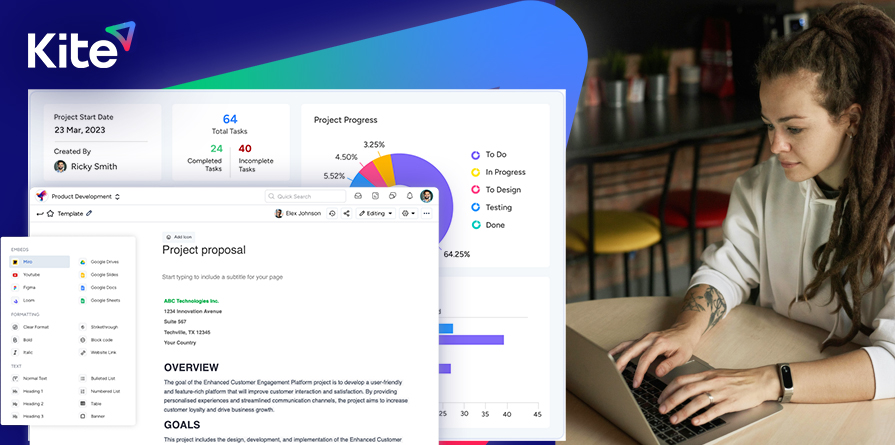
What Is Project Management Software? A Complete Beginner Guide

Managing a project today is nothing like it was a decade ago. Teams are distributed across cities and time zones, deliverables multiply faster than ever, and stakeholders expect real-time visibility into progress. Relying on spreadsheets, email chains, and sticky notes to keep everything together is a recipe for missed deadlines, budget overruns, and frustrated teams.


That is where project management software comes in. Whether you are running a startup, leading a marketing campaign, or overseeing a construction build, the right tool transforms chaos into clarity. This beginner guide to project management tools explains exactly what this software is, how it works, what to look for, and how to choose the best fit for your team.


What Is Project Management Software?

Project management software is a digital platform that helps individuals and teams plan, organize, track, and deliver projects from start to finish. Think of it as a central command center where every task, deadline, file, conversation, and report lives in one place visible to everyone who needs it.


“Software for project management helps teams plan, organize, track, and deliver projects efficiently replacing scattered spreadsheets and email threads with a single, connected workspace.”


At its core, PM software answers three fundamental questions: What needs to be done? Who is responsible for it? And by when? A basic task management app might answer only those three questions. Full project management software goes further it ties tasks to budgets, resources, timelines, and real-time reporting so leaders can make data-driven decisions at every stage of a project.


The key distinction: task management software helps individuals or small teams track to-do lists. Project management software coordinates entire projects across multiple people, departments, or even organizations with dependencies, milestones, budgets, and analytics built in.


How Does Project Management Software Work?

If you have never used a PM tool before, the process can feel overwhelming. In practice, it follows a clear and repeatable workflow that mirrors how any well-run project is managed.


Step 1 Project Planning

Every project starts with a plan. In the software, you define the project’s goals, scope, start date, end date, and budget. Most platforms offer templates so you do not have to build this structure from scratch. Project planning software typically lets you set milestones key checkpoints that mark meaningful progress toward your final goal.


Step 2 Task Creation and Assignment

Once the plan is set, you break the project into individual tasks. Each task is assigned to a team member, given a due date, and tagged with a priority level. Task management software makes it easy to see at a glance who is working on what and whether anything is at risk of falling behind.


Step 3 Timeline Management

A Gantt chart or calendar view displays all tasks across a timeline, showing how they relate to one another. Some tasks cannot start until a previous one is complete these are called dependencies. Project tracking software automatically adjusts dependent tasks when an earlier one shifts, preventing scheduling conflicts before they happen.


Step 4 Team Collaboration

Team collaboration software features such as comments, @mentions, file attachments, and shared dashboards replace the need for long email threads. Conversations happen inside the task itself, keeping context together and reducing the time spent searching for information.


Step 5 Tracking and Reporting

As work progresses, project reporting tools update automatically. Managers can view dashboards showing task completion rates, time logged, budget consumed, and potential bottlenecks. This real-time visibility is one of the biggest advantages over traditional spreadsheets, which require manual updates and are prone to errors.


Why Businesses Need Project Management Software

Many teams start with spreadsheets and quickly discover the limitations. Cells do not send alerts when deadlines are near. Rows do not show who is overloaded with work. Tabs do not automatically generate a progress report for your client. Here is why businesses across every industry are switching to dedicated PM software.


  • Centralized communication: Better team collaboration across departments and locations everyone works from the same source of truth.
  • Clear ownership: Improved accountability with clear task ownership no more ‘I thought you were handling that’ moments.
  • Real-time visibility: Visibility into deadlines so managers can spot risks early and reassign resources before a delay becomes a crisis.
  • Financial oversight: Budget and cost control with built-in tracking that compares planned versus actual spending in real time.
  • Efficiency gains: Increased productivity by eliminating the time teams waste on status meetings, manual updates, and redundant check-ins.


Key Features to Look For in Project Management Software

Not all platforms are built the same. When evaluating the best PM software features for your team, focus on the capabilities that directly address your biggest pain points.


1. Task and Workflow Management

The foundation of any PM tool. Look for the ability to create tasks, subtasks, and dependencies; set priorities; assign owners; and build repeatable workflow templates. Advanced platforms offer kanban boards, list views, and workflow automation so routine tasks move through stages without manual nudging.


2. Gantt Charts and Timeline Views

Gantt charts are the gold standard for project planning software. They display your entire project on a visual timeline, making it easy to see overlapping workloads, critical paths, and the ripple effect of any delay. Even if your team prefers a kanban or list view day-to-day, Gantt charts are invaluable for executive reporting and milestone tracking.


3. Team Collaboration Tools

Look for built-in messaging, document sharing, real-time editing, and notification systems. The best team collaboration software reduces the need to switch between your PM tool, email, and Slack by centralizing communication where the work actually happens.


4. Time Tracking

Built-in timers and manual time logging allow teams to record exactly how long tasks take. This data feeds into billing (for agencies), resource planning, and future project estimates. Without time tracking, you are essentially guessing how long your next project will take.


5. Reporting and Analytics

Project reporting tools should surface the metrics that matter: task completion rates, time logged vs. estimated, budget consumption, team workload distribution, and overdue items. The best platforms let you build custom dashboards so each stakeholder sees the data most relevant to their role.


6. Automation

Project workflow management becomes dramatically more efficient with automation. Common automations include: automatically assigning a task when it moves to a new stage, sending a reminder 48 hours before a due date, or notifying a manager when a task is marked complete. Automation reduces manual overhead and ensures nothing slips through the cracks.


7. Integration Capabilities

Your PM tool does not work in isolation. It should connect to the apps your team already uses Slack, Google Workspace, Microsoft 365, Zoom, Salesforce, GitHub, and others. Strong integrations mean information flows automatically between tools instead of requiring manual copy-paste.


8. Mobile Accessibility

For remote teams and field workers, mobile access is non-negotiable. Cloud-based project management tools with well-designed mobile apps allow team members to update tasks, log time, and respond to comments from anywhere keeping projects moving even when no one is at a desk.


Types of Project Management Software

The PM software landscape is broad. Understanding the major categories helps you narrow your search quickly.


  • Cloud-based PM software: Hosted entirely online no installation required. Teams access it through a browser or mobile app. Ideal for remote teams and companies that want automatic updates without IT overhead. Examples include Asana, Monday.com, and ClickUp.
  • On-premise PM tools: Installed on a company’s own servers. Preferred by organizations in regulated industries (healthcare, government, finance) where data must remain on internal infrastructure. Requires more IT involvement but offers maximum control.
  • Agile and Scrum tools: Built specifically for software development teams following Agile methodologies. Features like sprint planning, backlog management, story points, and burndown charts are first-class citizens. Jira is the dominant player in this category.
  • Enterprise project management systems: Designed for large organizations managing hundreds of simultaneous projects across multiple departments. These platforms include advanced resource management, portfolio views, and executive dashboards. Microsoft Project, Smartsheet, and Planview are common at the enterprise level.


Who Uses Project Management Software?

The short answer: virtually every industry that runs projects. Here is a look at the teams that rely most heavily on PM tools.


Small businesses: Small businesses and startups use cloud-based project management tools to punch above their weight coordinating teams without hiring a dedicated project manager.


Enterprise teams: Enterprise teams manage complex, multi-department initiatives and need portfolio-level visibility across dozens of simultaneous projects.


Marketing teams: Marketing teams use PM software to track campaigns, content calendars, asset approvals, and launch deadlines across multiple channels.


IT and dev teams: IT and development teams rely on Agile PM tools to manage sprints, track bugs, and ship software on a predictable cadence.


Construction: Construction companies use project management software for remote teams, tracking permits, subcontractors, milestones, and budget compliance in the field.


Remote teams: Remote and distributed teams depend on PM software as their virtual office the one place where everyone is aligned on priorities and progress.


Benefits of Using Software for Project Management

The business case for PM software is straightforward. Organizations that adopt dedicated tools consistently report measurable improvements across key performance metrics.


  • Faster delivery: Faster project delivery by eliminating bottlenecks before they become delays.
  • Fewer delays: Reduced delays through early warning systems that flag at-risk tasks and dependencies.
  • Clearer communication: Better communication with all stakeholders working from a shared, always-updated source of truth.
  • Smarter resource use: Improved resource allocation by showing exactly who is over-capacity and where additional help is needed.
  • Informed decisions: Data-driven decisions enabled by real-time dashboards and historical performance data.
  • Client satisfaction: Greater client confidence through transparent progress updates and professional reporting.


Common Challenges and How PM Software Solves Them

Even experienced managers struggle with predictable problems. Here is how project management software directly addresses the most common pain points.


Missed Deadlines

When tasks exist only in someone’s memory or a static spreadsheet, deadlines get missed. PM software sends automated reminders, highlights overdue items in red, and gives managers a daily view of what is behind schedule so action can be taken immediately rather than during the next status meeting.


Poor Communication

Email is a terrible project management tool. Threads splinter, attachments get lost, and decision-makers are left out of key conversations. Centralized collaboration features keep every conversation, decision, and file attached to the relevant task eliminating the ‘I never got that email’ problem entirely.


Scope Creep

Projects grow in unexpected ways when there is no clear record of what was originally agreed upon. PM software documents the original scope, logs all change requests, and tracks the impact of additions on budget and timeline giving you the data you need to push back on out-of-scope requests or adjust expectations proactively.


Resource Overload

Assigning too much work to your best people is easy when you have no visibility into their current load. Resource management features in PM software show workload distribution across the team, making it easy to balance assignments and prevent burnout before it becomes a retention problem.


How to Choose the Right Project Management Software

With hundreds of options on the market, choosing the right tool can feel paralyzing. Follow this framework to make a confident decision.


Define your needs. Define your needs first. Are you managing simple to-do lists or complex multi-phase projects? Do you need time tracking, billing, or client portals? The more specific you are about your requirements, the faster you will eliminate tools that are not a fit.


Match team size. Consider team size and structure. Some tools are designed for solo users or small teams; others are built for enterprises with complex approval workflows. Check user limits, permission levels, and admin controls.


Set a budget. Set a realistic budget. PM software pricing ranges from free (with limited features) to hundreds of dollars per user per month for enterprise platforms. Factor in the cost of onboarding and training, not just the subscription fee.


Plan for growth. Think about scalability. The tool you adopt today should still serve you when your team doubles. Check whether pricing scales reasonably and whether the platform has the advanced features you might need in 12 to 24 months.


Prioritize adoption. Prioritize ease of use. The most powerful PM tool is useless if your team refuses to use it. Look for an intuitive interface and read reviews specifically about onboarding experience and learning curve.


Use the trial wisely. Take advantage of free trials. Nearly every major PM platform offers a 14- to 30-day trial. Run a real project through the tool during the trial period not a demo project so you experience its actual workflow.


“PM software comparison tip: When evaluating options side-by-side, focus less on the feature list and more on how each tool fits your team’s daily workflow. A tool with fewer features that your team actually uses consistently will outperform a feature-rich platform nobody opens.”


Final Thoughts: Is Project Management Software Worth It?

The return on investment for PM software is well-documented. Teams that adopt dedicated project management tools report shorter delivery cycles, fewer budget overruns, and higher client satisfaction scores. For small businesses, the productivity gains alone typically justify the cost within the first month of adoption.


From a productivity perspective, the math is simple: if a PM tool saves each team member one hour per week in status meetings, manual updates, and searching for information, a five-person team recovers 260 hours of productive time per year. At any reasonable hourly rate, that is significant ROI from a tool that often costs less than a few coffee runs per user per month.


Looking ahead, the next generation of project management software is being shaped by artificial intelligence. AI-powered PM tools can now predict which tasks are at risk of delay based on historical patterns, automatically suggest resource reallocations, draft project briefs from meeting notes, and generate status reports without manual input. As these capabilities mature, the gap between teams that use PM software and those that do not will only widen.


Whether you are a solo freelancer organizing client work or a team leader managing a 20-person department, there is a project management software solution built for your exact situation and a free trial waiting for you to try it today.